How to find and fix broken links and 404 errors
Broken links frustrate visitors and waste Google's crawl budget. Learn how to find broken internal and outgoing links, fix 404 and 500 errors, and set up 301 redirects.
By the WebTools team · Published 2026-11-10 · 1 min read
A broken link sends visitors to an error page instead of what they wanted. Inside your own site, it also wastes the time search engines spend crawling you.
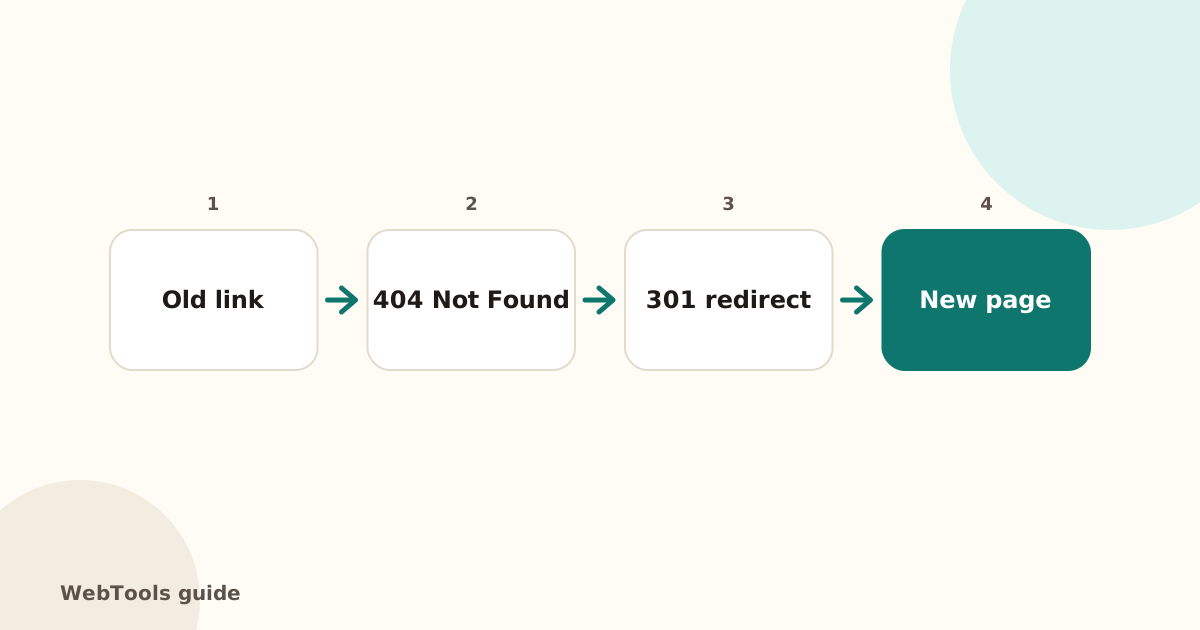
Types of broken links
- Internal: a link on your site to a page on your site that returns 404 or 500. Fix these first.
- Outgoing: links to other websites that no longer exist.
- Pages that return errors: 4xx and 5xx responses, even if nothing links to them, especially if they're in your sitemap.
How to find them
Run the deeper scan in the website checker to test up to 100 links on your homepage. The full SEO audit crawls up to 50 pages, tests every internal link, up to 150 outgoing links, and shows which page each broken link is on.
How to fix them
- Wrong address in the link: correct the link in the page.
- Page moved: add a 301 redirect from the old address to the new one (Redirection plugin in WordPress, URL Redirects in Shopify, your server or Cloudflare rules).
- Page deleted for good: remove or update the links to it. Keep a helpful 404 page with search and popular links.
- Outgoing link dead: link to a current source, or remove the link.
- 500 errors: a server or code problem. See is my website down?
Prevent them
Use your CMS's internal link picker instead of typing addresses, add redirects whenever you change a URL, and re-run the audit after every redesign.
Questions about this topic
Do broken links hurt SEO?
A few won't sink your site, but many broken internal links waste crawl time, leak ranking signals and make the site look neglected, which hurts visitors first.
Should every 404 be redirected?
Redirect pages that had traffic or links to the closest relevant page. For pages that are truly gone with no replacement, a 404 or 410 is fine. Don't redirect everything to the homepage.
Related guides
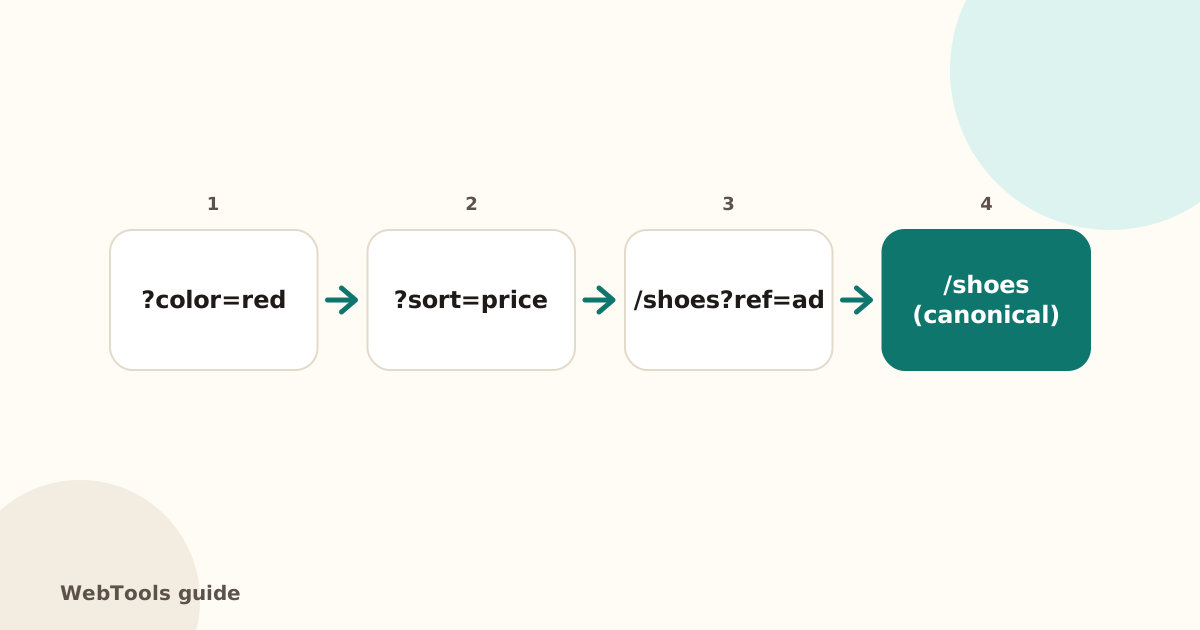 SEOCanonical tags: fix duplicate content the right wayA canonical tag tells Google which address is the main copy of a page. Learn when to use it, how to add it, and how to fix missing, wrong and duplicate canonicals.1 min read
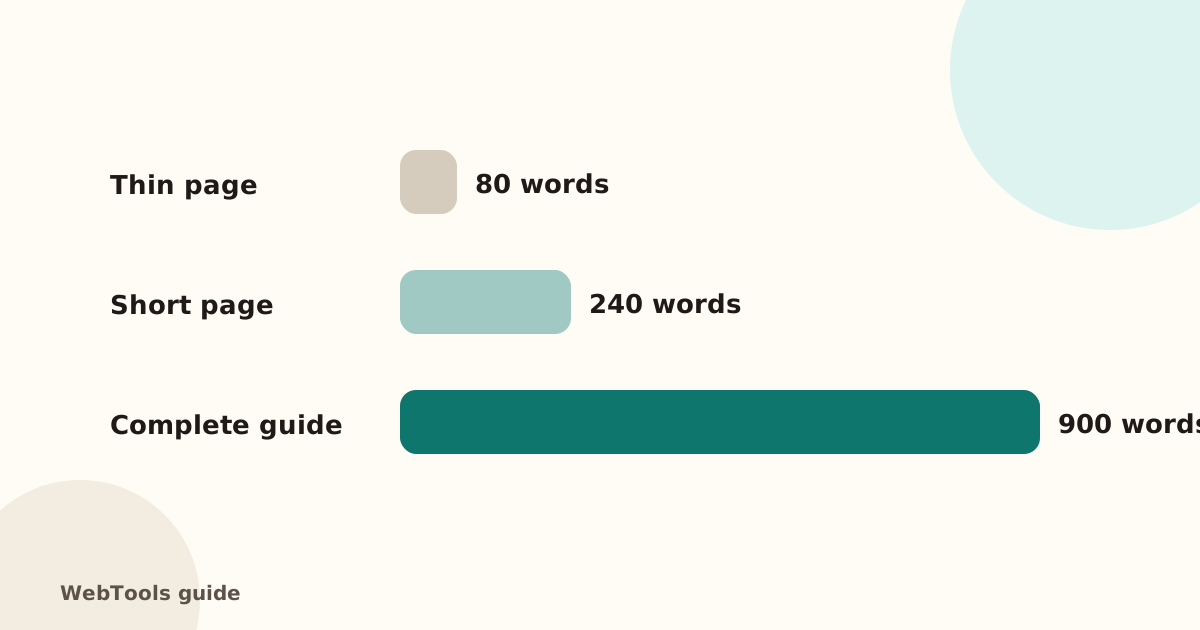 SEOThin content: how much text does a page need to rank?Pages with very little text rarely rank. Learn what thin content is, when short pages are fine, and how to expand or merge pages so they answer the searcher's question.1 min read
 SEOFavicon: add the small icon Google and browsers showA favicon appears in browser tabs, bookmarks and next to your site in Google's mobile results. See the sizes you need and how to add one in WordPress, Shopify and HTML.1 min read