H1 and heading structure: how to organise a page for SEO
Use one clear H1 per page and headings in order (H1, H2, H3). Learn why heading structure matters for SEO and screen readers, and how to fix missing or multiple H1s.
By the WebTools team · Published 2026-11-10 · 1 min read
Headings are the outline of your page. They help visitors scan, help screen reader users jump between sections, and tell search engines what each part of the page is about.
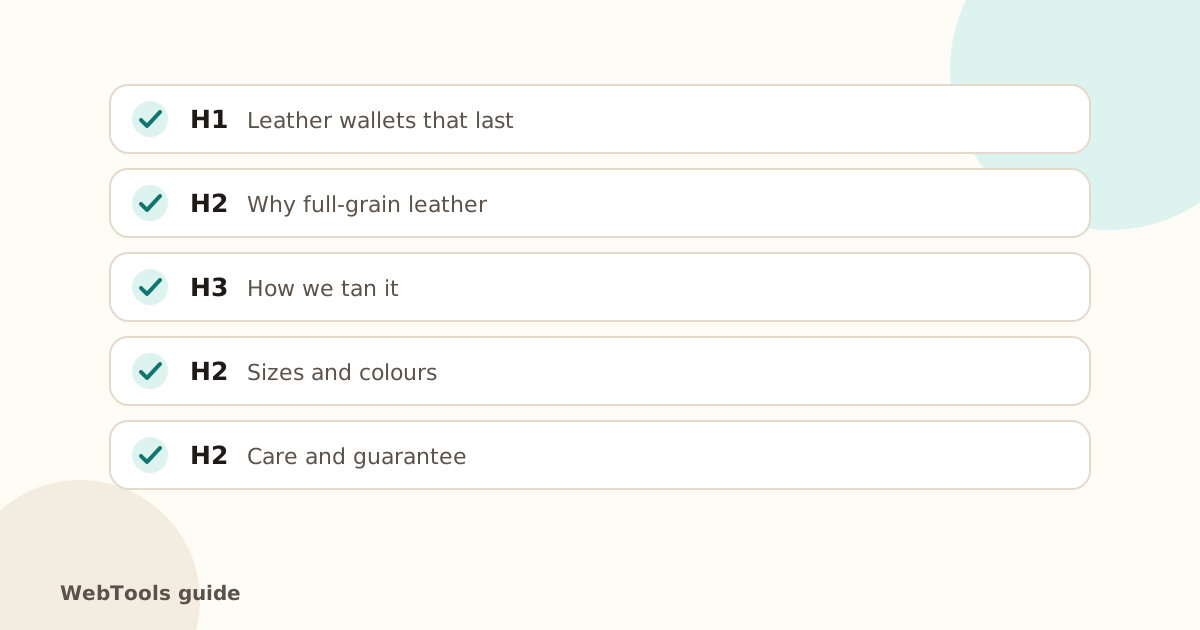
The rules
- One H1 per page: the main headline, close to your title tag and including the main keyword.
- H2 for main sections, H3 for sub-sections inside them.
- Don't skip levels: no H4 straight after an H2.
- Headings are for structure, not style. If you only want big bold text, use CSS.
Fixing a missing H1
Many themes show the page title as an H1 automatically, but some homepages and landing-page builders don't. In WordPress block editor, add a Heading block and choose H1 (some themes reserve H1 for the title). In Elementor or Divi, set the heading widget's HTML tag to H1. In Shopify, check that the theme's section heading uses an h1 tag on the homepage.
Fixing multiple H1s
The usual cause is a logo or a sidebar widget wrapped in an H1, or a page builder where every heading widget defaults to H1. Change those to H2 (or to a plain div for the logo).
Fixing skipped levels
Look for headings chosen for their size, such as an H4 used for a small caption. Change the level and adjust the size with your theme's typography settings instead.
Check yours
The website checker counts the H1 headings on your homepage. The full SEO audit checks every page for missing and multiple H1s and for skipped heading levels. Pair your H1 with a strong title tag.
Questions about this topic
Can a page have more than one H1?
HTML allows it, and Google copes, but one H1 makes the topic clearest for visitors, search engines and screen readers. Turn extra H1s into H2s.
Is it bad to skip heading levels?
It isn't a penalty, but going from H2 to H4 breaks the outline that screen reader users rely on to navigate. Use levels in order.
Related guides
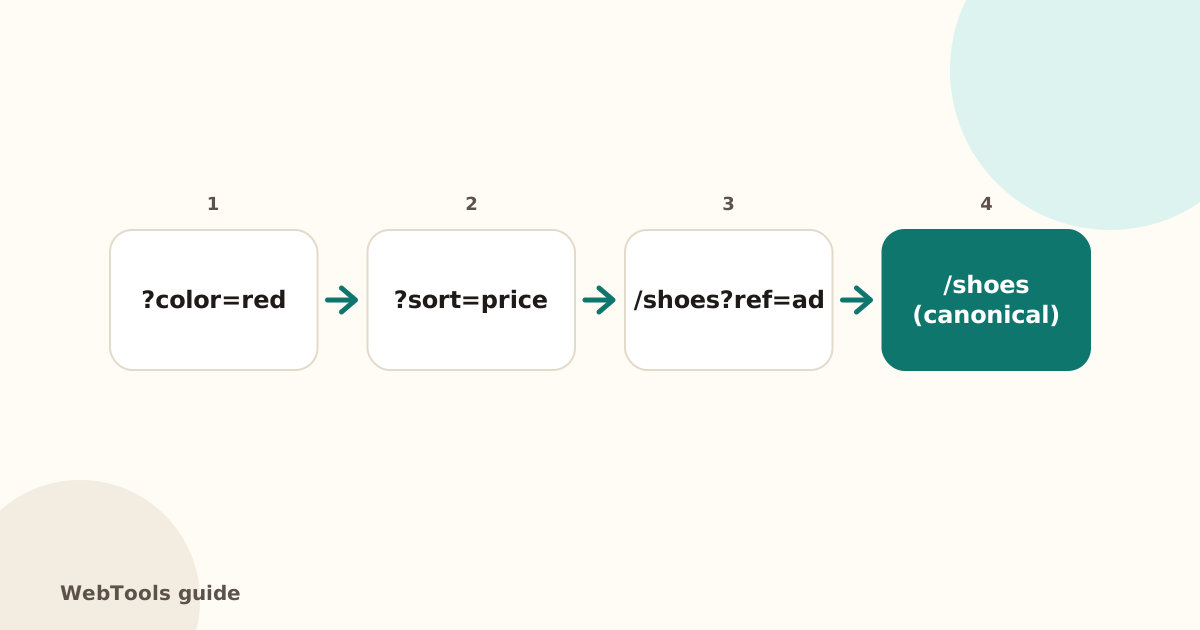 SEOCanonical tags: fix duplicate content the right wayA canonical tag tells Google which address is the main copy of a page. Learn when to use it, how to add it, and how to fix missing, wrong and duplicate canonicals.1 min read
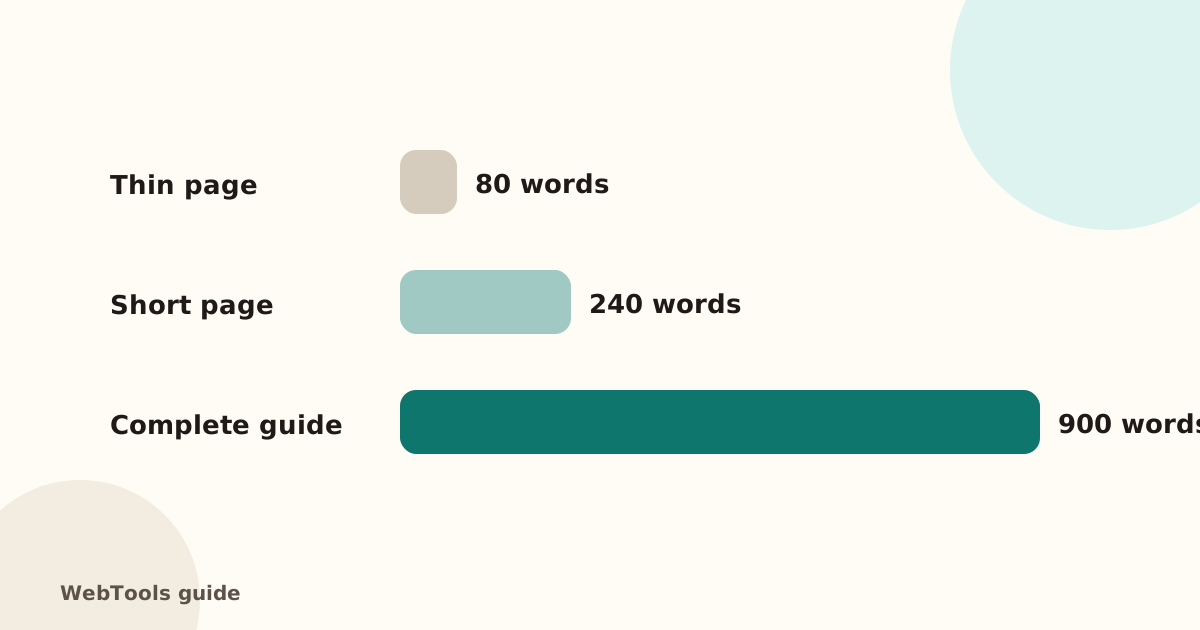 SEOThin content: how much text does a page need to rank?Pages with very little text rarely rank. Learn what thin content is, when short pages are fine, and how to expand or merge pages so they answer the searcher's question.1 min read
 SEOFavicon: add the small icon Google and browsers showA favicon appears in browser tabs, bookmarks and next to your site in Google's mobile results. See the sizes you need and how to add one in WordPress, Shopify and HTML.1 min read