Optimise images for the web: size, WebP/AVIF and caching
Heavy images are the top reason pages load slowly. Learn how to resize and compress images, switch to WebP or AVIF, lazy-load them and set browser caching.
By the WebTools team · Published 2026-11-10 · 1 min read
Images make up most of the weight of a typical web page. A single photo straight from a phone can be 4–5 MB, more than the rest of the page combined.
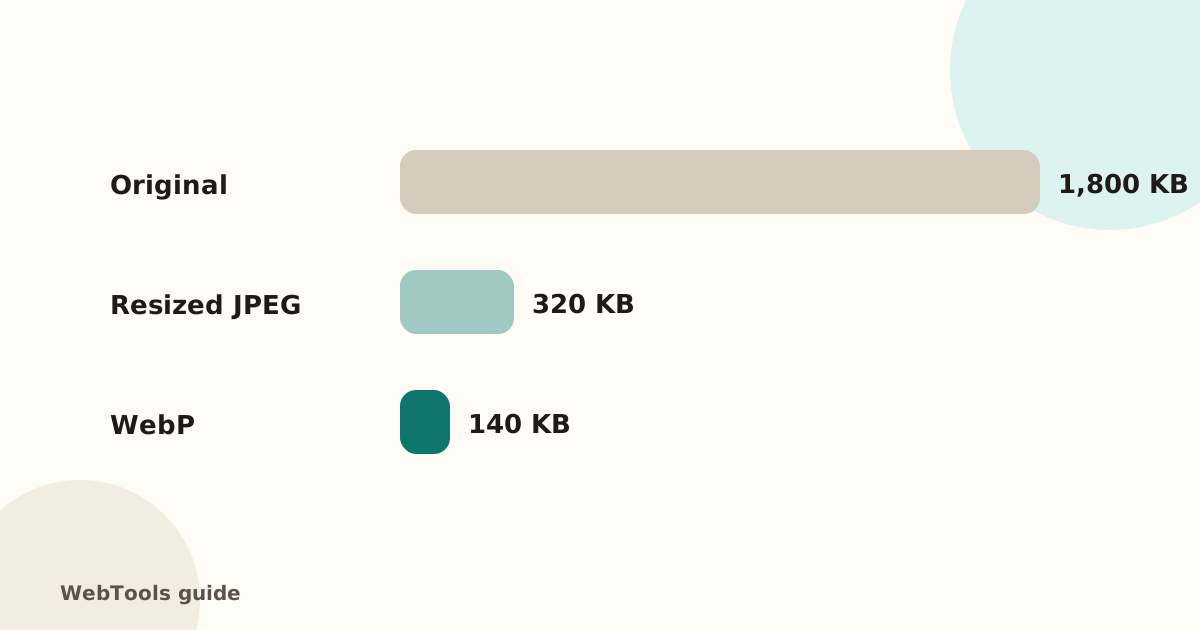
1. Resize before uploading
Don't upload a 4000 px photo to show it at 800 px. Resize to about twice the displayed width for sharp screens.
2. Compress
Use Squoosh (free, in the browser), TinyPNG, or a plugin such as ShortPixel, Imagify or EWWW in WordPress. Quality 75–85 is usually indistinguishable from the original.
3. Use modern formats
WebP and AVIF are typically 25–50% smaller than JPEG at the same quality, and all current browsers support them. Shopify and Wix serve them automatically; on WordPress, a plugin or your CDN can convert on the fly.
4. Lazy-load below the fold
Add loading="lazy" to images that aren't visible on first screen (WordPress does this by default). Don't lazy-load the main hero image.
5. Set width and height
Width and height attributes stop the page jumping while images load.
6. Cache images in the browser
Images rarely change, so tell browsers to keep them: Cache-Control: max-age=31536000 for images. Most CDNs and caching plugins set this.
7. Add alt text
Every image needs an alt text for accessibility and image search.
The SEO audit tests up to 80 images and lists the ones over 300 KB, those served without caching, and whether you use any modern formats.
Questions about this topic
What size should website images be?
No wider than they are displayed (often 1200–2000 px for full-width, 600–800 px for content images), and usually under 200–300 KB each.
Do I need to convert all images to WebP?
It helps, but many CMSs and CDNs convert automatically. Start with your largest images and your homepage.
Related guides
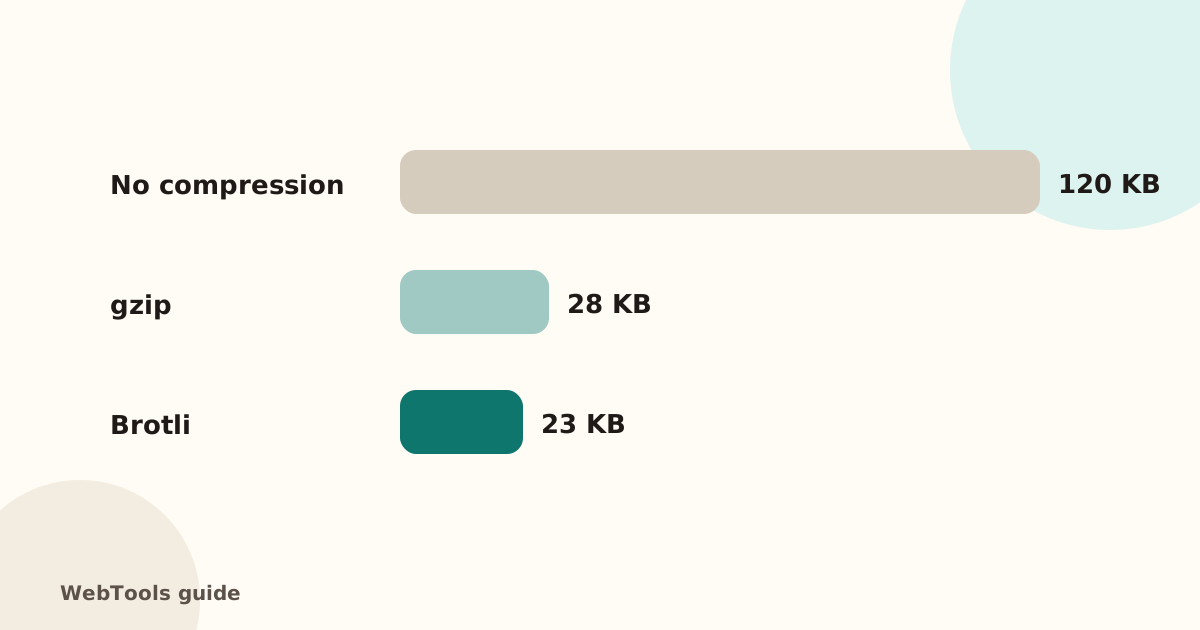 SpeedEnable gzip and Brotli compression to make pages load fasterCompression shrinks HTML, CSS and JavaScript by 70–80%. Learn how to turn on gzip or Brotli in Apache, Nginx, Cloudflare and WordPress, and how to check it works.1 min read
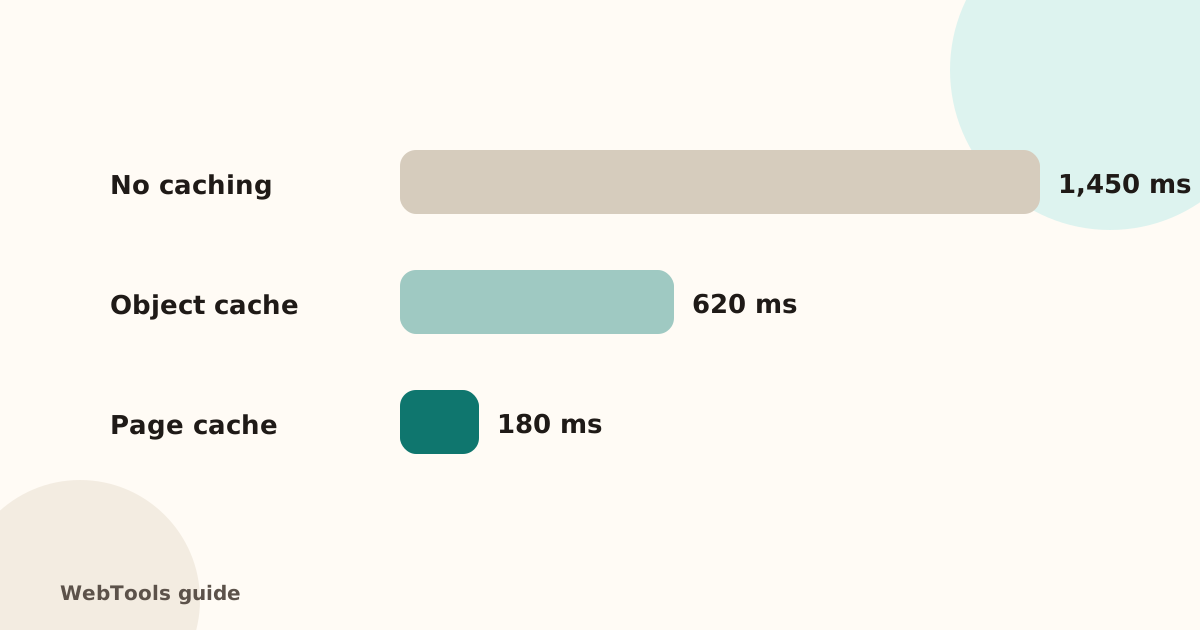 SpeedHow to reduce server response time (TTFB) below 800 msA slow server response (TTFB) delays every page. Learn what a good TTFB is and how to cut it with caching, a CDN, faster hosting and fewer slow plugins.2 min read
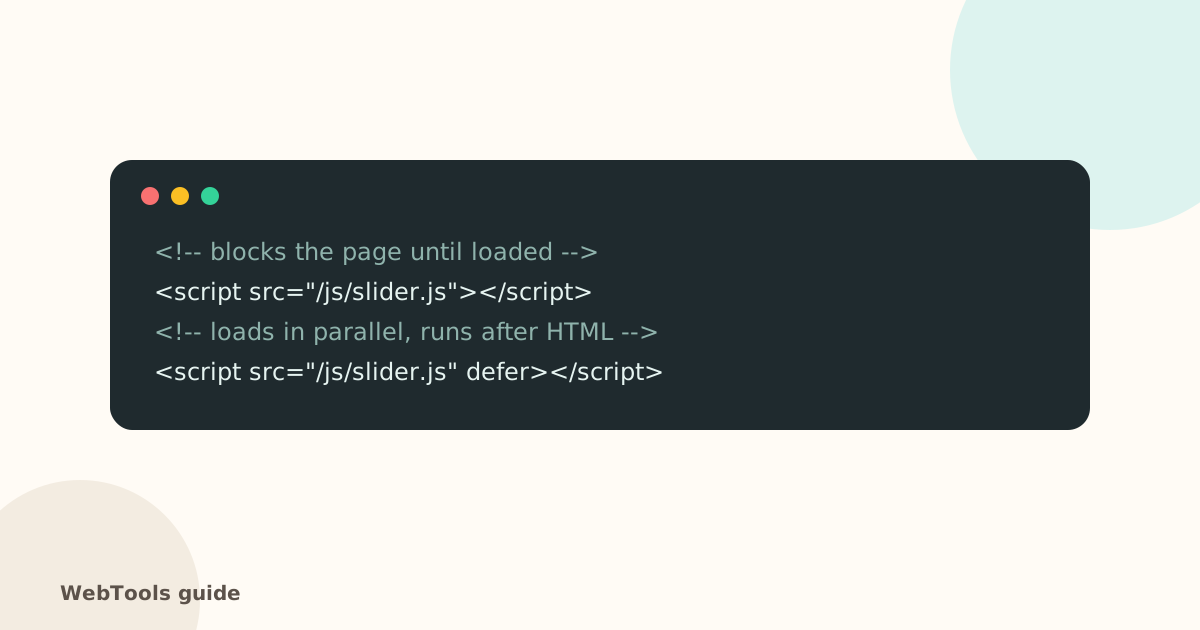 SpeedRender-blocking scripts: use defer and async to show pages soonerScripts in the page head without defer or async stop the page from appearing. Learn the difference between defer and async and how to trim third-party scripts.1 min read